This wiki is written for AV engineers running the show, not developers — it's about using the dashboard on a real production, not how it's built.
SRT Matrix is a routing gateway: field encoders (cameras, laptops, OBS rigs) push their video in over the internet, and you route each one to a slot on your production switcher (vMix or similar) from a web dashboard — live, without restarting anything. You can also send a return/preview feed back out to the field, and push a copy of any feed out to external hardware or streaming platforms.
Think of it like a router/switcher for network video: sources are your inputs, destinations are where video goes.
Something wrong right now? Start here before digging into the rest of this wiki:
See Ports and Troubleshooting for the full checklist once you've narrowed down what's wrong.
Reaching the dashboard: open a browser to http://<gateway-address>:8080 —
whatever machine SRT Matrix is running on. There's no login screen and
no account to create; whoever can reach that address and port has full
control, permanently — see Known Issues for what that
means in practice and how to manage the risk. Network access is your
access control: don't expose port 8080 to the open internet, and
treat it the same as any other unauthenticated production control
surface (same LAN/VPN as your other show equipment, not a public IP).
Where the gateway itself needs to live: it needs to be reachable from two different directions at once — from the public internet (so remote field encoders can call in as sources) and from your local venue/production network (so it can dial out to vMix/OBS destinations on that network). In practice this usually means a small cloud VM or an on-prem box with a public IP, connected into your venue network by whatever means you'd normally use (VPN, direct routing, etc.) — the two directions are independent, so a source's connection and a destination's connection never share a network path.
Closing the browser tab/webpage does nothing. The dashboard is just a viewer/controller for state that already lives entirely on the gateway — there's nothing "unsaved" in your browser to lose. Close it, reopen it later, and everything is exactly as you left it.
Restarting the gateway itself (a deploy, a crash, a reboot) is a different question, and the short answer is: you never have to recreate your sources, destinations, or routing. Every source, every destination, and whatever's currently routed (every slot, every return feed) is written to disk the moment you make the change — not on a timer, not only when you shut down cleanly — and all of it is loaded back automatically the next time the gateway starts. This happens automatically whether or not you've ever saved a preset — presets are a separate, optional convenience for recalling a named routing layout on demand, not a requirement for your current routing to survive a restart. The one thing that does not survive a restart is the Events log (see below), which is a live session record only, not written to disk.
What a restart does cost you is live connections themselves — every active source and destination connection drops, because that's an actual live network session, not something a restart can preserve. But each one starts retrying and automatically reconnects the moment the gateway is back up, using the exact same configuration it had before — the same behavior as any single connection dropping and recovering, just happening to everything at once instead of one endpoint.
Multiple people, multiple tabs: any number of browsers can have the dashboard open at once, all seeing the same live state — there's no per-user login or role separation, so anyone with the dashboard open can make routing changes. A change one person makes (a reroute, an added source) appears live for everyone else's open tab within a second or two. Works on any current desktop browser; the drag-and-drop routing on Operate isn't designed for touch, so a phone/tablet is fine for checking Diagnostics or Events mid-show but not for actively routing.
Licensing: each install needs an active license, capped on the number of sources and destinations you can configure (unlimited is also possible, depending on your license). Hitting the cap only blocks adding a new source or destination — every source/destination you've already configured, and every connection already running, keeps working normally. Manage activation, see your current usage, or start a self-service 30-day trial from the About tab. To buy a license or add capacity, see the store.
Does closing the browser tab lose anything? No. The dashboard is only a viewer/controller for state that already lives entirely on the gateway — there's nothing "unsaved" in your browser. Close it, reopen it later (even from a different computer), and everything is exactly as you left it.
If the gateway restarts, do I have to recreate my sources and destinations? No. Every source, destination, and route is written to disk the moment you make the change and reloaded automatically the next time the gateway starts. The only thing that doesn't survive a restart is the Events log. See "Restarting the gateway itself" above for what does happen to active connections in the meantime.
Does the current routing (what's patched into which slot) survive a restart, or do I need to save a preset first? It survives on its own, automatically, whether or not you've ever touched presets. Presets are a separate, optional convenience — a named snapshot of a routing layout you can save and re-apply later — not a requirement for your current routing to persist.
What actually happens to a source/destination's port number if I delete something and add a new one? Existing sources/destinations never have their ports move. A newly-added one can land on a port a previously-deleted one used to occupy, though — see the port reference on Ports and Troubleshooting for exactly how that numbering works.
What happens when I hit my license's source/destination cap? Only adding a new source or destination is blocked. Everything already configured, and every connection already running, is completely unaffected.
Is there a login or any access control inside the dashboard itself? No — see Known Issues for what that means and how to manage it at the network level instead.
Both sources and destinations can speak more than one protocol — see Adding Sources and Destinations for which one to pick for your specific encoder or hardware.
A concrete example — an OBS laptop's camera feed needs to reach a vMix box across the building, with a preview sent back to the laptop:
If anything doesn't connect, Ports and Troubleshooting has a checklist.
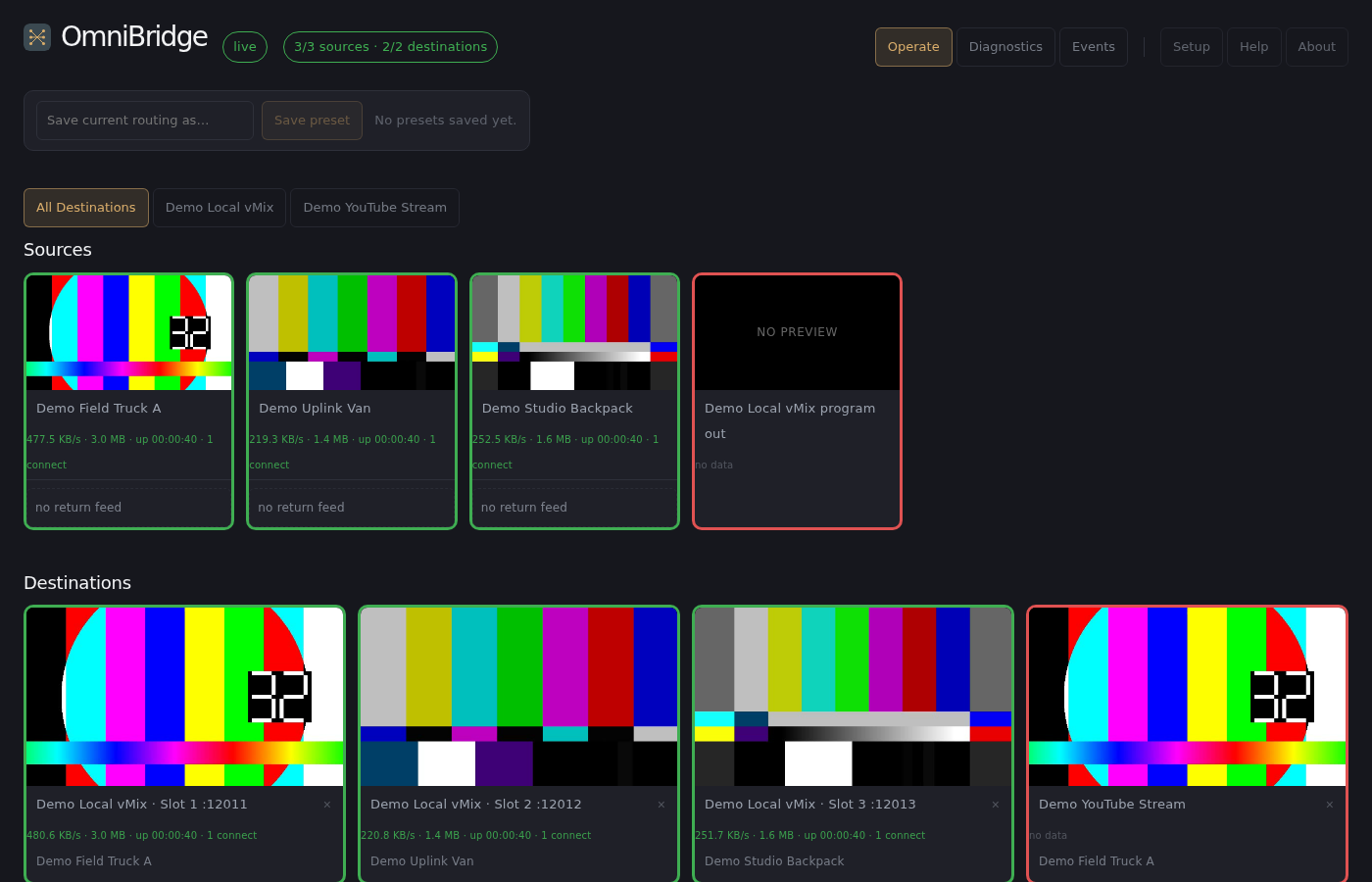
On the Operate tab, every source and destination shows up as a draggable tile. There are two different drags, feeding two different things:
Both directions apply the same way to single-feed destinations (Epiphan, a streaming platform, a RIST box) as to a 3-slot vMix/OBS destination — one tile, drag-and-drop, no separate picker.
The bar at the top of Operate lets you save the current routing — every source-to-slot patch, every return feed — as a named preset, and re-apply it later in one click instead of re-dragging everything by hand. Applying a preset resets the whole matrix to exactly that saved state: anything not listed in the preset gets cleared, not just left alone. Useful for "default show layout" or "reset everything before rehearsal."
The nav bar groups its six tabs — Operate, Diagnostics, Events, Setup, Help, and About — into two visual clusters: what you touch during a show, and what you touch once setting up or occasionally for reference. Every tab is still one click away either way; nothing's behind a menu.
Live-ops cluster:
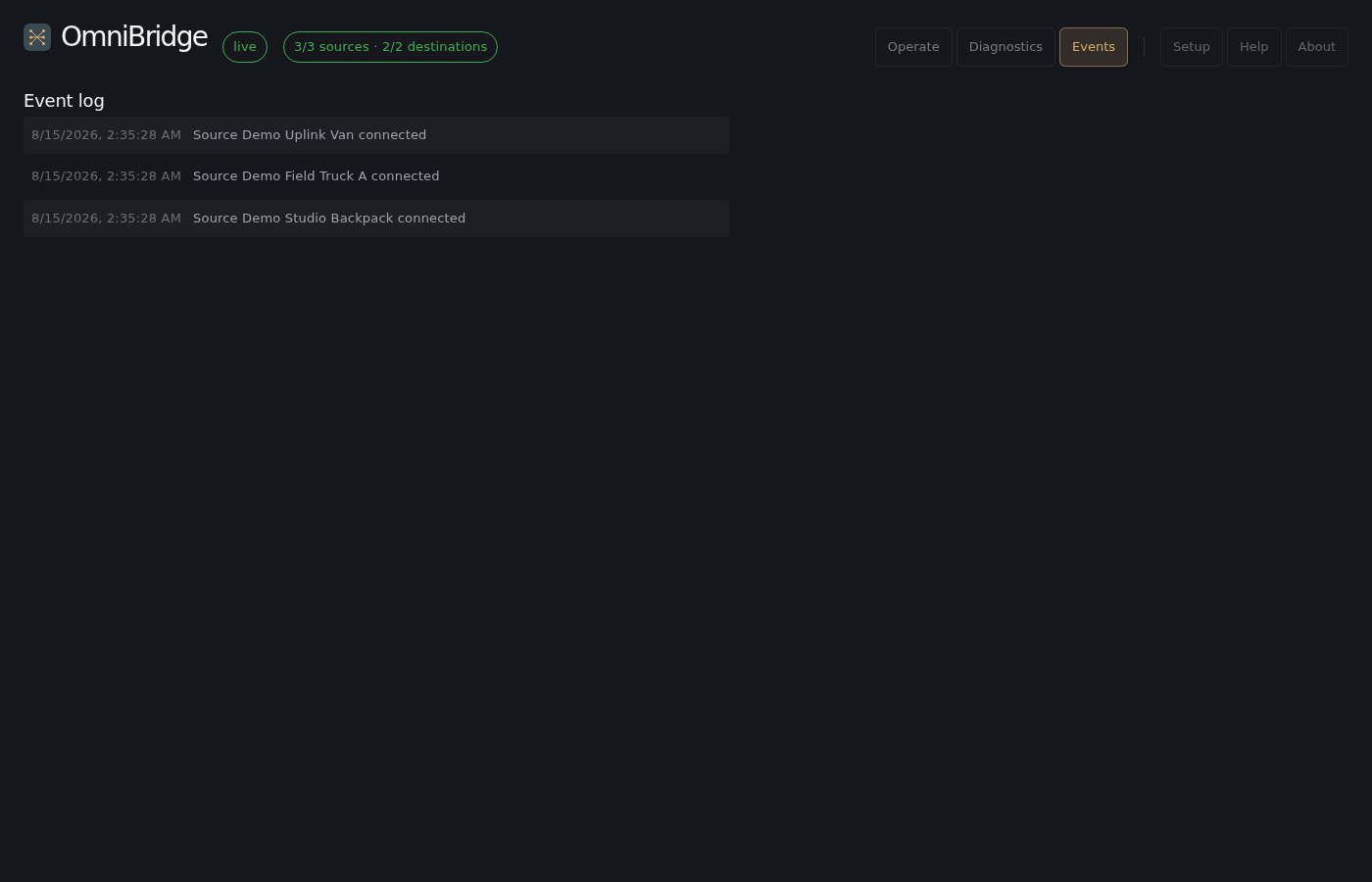
Setup/reference cluster: